
MRX Learning Center
Understanding the Steps to Book Your Free No-Obligation Mineral Rights Review
Book the current MRX phone review by confirming your timezone, choosing a live slot, providing appointment details, making separate communication choices, and waiting for the on-screen booked state.

Direct answer for mineral owners
Open the MRX booking page, ask Elena for a phone appointment, confirm your timezone, choose tomorrow afternoon, tomorrow evening, or the next available window, select a live time, provide the appointment name, email, and phone, make each communication choice separately, and wait for the on-screen message that says you are booked. A displayed or selected time is not the completed booking.
Key takeaways for mineral owners
- The current first-party flow checks live availability instead of sending the owner through a public calendar.
- Selecting a time begins the detail-and-permission sequence; the appointment is complete only after the on-screen booked confirmation.
- Permission for the requested phone call is separate from email confirmation, SMS confirmation, optional AI-voice contact, and marketing choices.
- If the calendar or final confirmation fails, the flow says no appointment was created rather than inventing or assuming a booking.
This article describes the current MRX first-party booking flow as accessed August 12, 2026. Interface steps and available times can change. The phone review is free, educational, directional, and no-obligation. It is not legal or tax guidance, a title opinion, a reserve report, engineering work, a formal valuation engagement, or a guarantee of eligibility, value, an offer, payment, or closing. Elena is a fictional MRX AI scheduling guide, not a human or licensed professional.
Direct answer for mineral owners
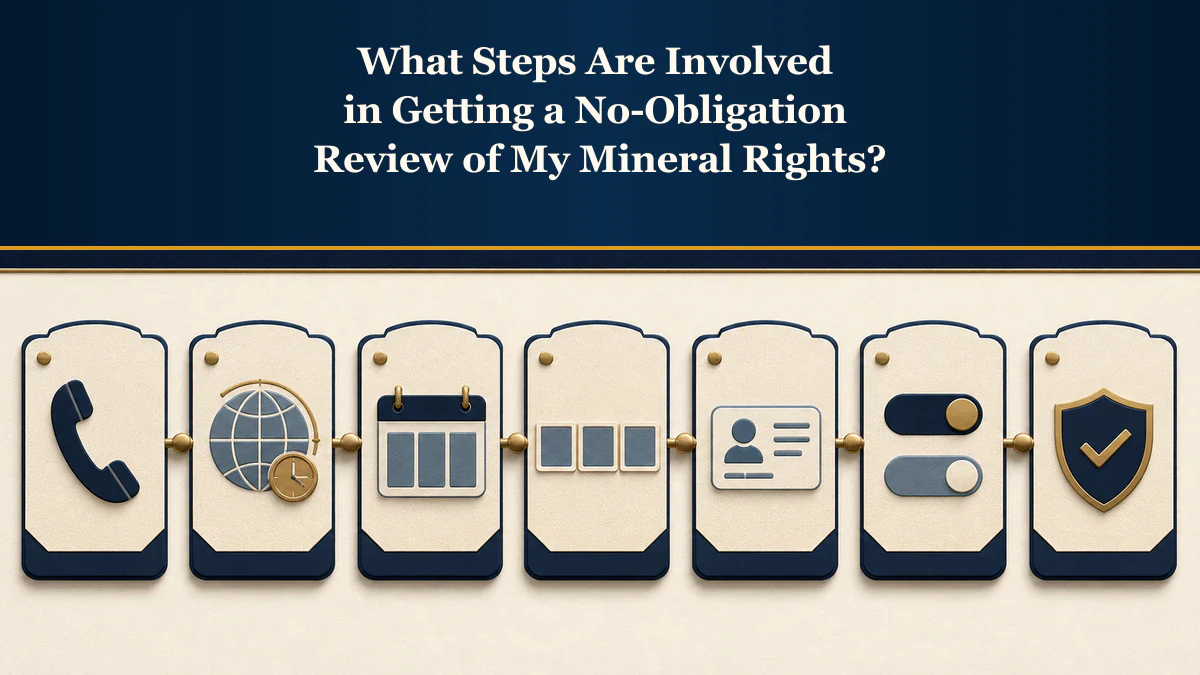
Use the MRX booking page and complete seven checkpoints:- open the private appointment assistant;
- confirm the timezone in which you want to see appointment times;
- choose tomorrow afternoon, tomorrow evening, or the next available window;
- select one of the live phone times shown;
- provide the name, email, and phone number for the appointment;
- answer each requested-call and confirmation-channel question separately; and
- wait for the on-screen message that says you are booked.
The last checkpoint matters. Seeing a time, selecting a time, or typing contact information does not by itself prove that an appointment was created. If the calendar cannot be reached or the confirmation fails, the current flow says no appointment was created.
Before you start: know what this booking does
The booking creates a phone appointment with the MRX team. It does not submit a sale agreement, transfer mineral rights, approve an offer, establish title, calculate a final value, or commit the owner to a transaction.
The current booking page says phone appointments are free and there is no obligation to sell. The MRX FAQ describes the underwriter assessment as directional rather than a formal appraisal and says no card is collected for the free review.
MRX provides educational information and resources only and does not buy mineral rights. Booking a discussion is an educational intake action and not acceptance of any third-party proposal.
Step 1: open the private appointment assistant
Start from the first-party MRX booking page. Select Find three phone times or Open appointment assistant. The page opens a private scheduling conversation with Elena rather than sending you through a public calendar.
You can ask Travis a mineral-rights question before booking. If a phone call would help, the booking flow can begin from the same site. Do not rely on an old screenshot, copied calendar link, or third-party message for current availability.
Confirm that the browser address is on mineralrightsxchange.com before entering appointment information. The MRX privacy policy and terms describe the first-party account, communications, and private-document boundaries.
Step 2: confirm the timezone
Elena begins with the timezone detected by the browser and asks whether it is correct. Confirm it or choose the applicable timezone before requesting times.
This control prevents a common scheduling error: reading a displayed time in one zone and expecting the call in another. Use the timezone where you will actually receive the call. If you are traveling, decide whether the appointment should follow your current location or your usual home or business timezone.
The current flow recognizes the major U.S. zones, including Eastern, Central, Mountain, Pacific, Alaska, Hawaii, and Arizona. The live interface should be the authority for the label you select because daylight-saving treatment can change the clock offset.
Step 3: choose a timing window
After the timezone is set, the current flow offers three search choices:
- tomorrow afternoon;
- tomorrow evening; or
- the next available time.
This is a search preference, not a promised appointment. Elena checks the current MRX calendar after the choice is made. The booking page describes three available choices, but a narrower window can return fewer choices or none when availability is limited.
If the preferred window has no opening, choose another part of the day or request the next available times. If the calendar is unavailable, the assistant should say that it cannot reach the calendar and will not make up a time.
Step 4: select a live phone time
Review the date, clock time, and timezone on every displayed option. Select the one that works. The assistant then removes the other choices and tells you it will hold the selected option while the remaining booking steps are completed.
At this point, treat the status as selected, not booked. The slot still needs appointment identity, a working contact path, requested-call permission, and a successful final confirmation.
Do not create a second browser session to chase the same time. Availability is live and may change. Complete the active flow or let it fail closed, then request a new set of options if needed.
Step 5: provide the appointment contact details
The current booking flow asks for:
- the first name to place on the appointment;
- an email for appointment details and secure MRX member access; and
- the phone number the MRX team should call.
Use information you can access and verify. A mistyped email can prevent a requested confirmation or secure sign-in link from reaching you. A mistyped phone number can prevent the requested appointment call.
These fields identify the appointment; they do not prove mineral ownership. You do not need to guess at acreage, title, lease status, a royalty decimal, production, or value in order to select a phone time.
Keep sensitive information out of the scheduling conversation. Do not provide passwords, one-time codes, full taxpayer identification numbers, bank credentials, or unrelated personal records. The MRX terms say users are responsible for keeping sign-in links secure and uploading only files they are authorized to share.
Step 6: make each communication choice separately
The current booking flow does not treat every communication purpose as one combined permission. Read each prompt and answer it on its own.
Requested phone call
The appointment is a phone call, so the flow asks whether MRX may call the supplied number for that specific appointment. If that permission is declined, the current assistant says no phone appointment was booked and returns to the on-site conversation.
Email confirmation
The flow asks whether MRX may email the appointment confirmation. Choosing no should not be interpreted as canceling the requested phone call. The on-screen confirmation remains the primary record when no email confirmation is requested.
SMS confirmation
The flow separately asks whether MRX may text the appointment confirmation. The booking page states that declining text messages does not prevent booking. If SMS is selected, the live disclosure describes message and data rates and the applicable opt-out instructions.
Optional AI-voice contact
The current flow asks separately whether Elena may use an AI-generated voice for appointment or document updates the owner requests. The prompt says this permission is optional, may be revoked, and is not required to book or use website help.
Marketing choices
Do not read an appointment permission as blanket marketing consent. The MRX terms say requested-call, transactional email, transactional text, and optional marketing choices are stored separately. Review the purpose shown with each choice.
Step 7: wait for the booked confirmation
The booking is complete only after the first-party interface returns a success state. The current confirmation begins with You’re booked for and repeats the selected appointment label. It also says which requested confirmation channels were used, whether secure member access is ready or a sign-in link was sent, and which phone number will receive the call.
Capture or write down:
- the confirmed date and time;
- the displayed timezone;
- the phone number to be called;
- whether email or SMS confirmation was requested; and
- the first-party account or on-screen location where the appointment appears.
If an email or text was requested but does not arrive immediately, do not assume the appointment failed when the on-screen booked state is present. Check the displayed appointment details and the secure owner-account route. Conversely, an unconfirmed selected slot should not be treated as booked merely because it appeared on screen earlier.
Booked versus not booked
Use this status register:
- Assistant opened: not booked.
- Timezone or timing window selected: not booked.
- Live slots displayed: not booked.
- One slot selected: not booked yet.
- Contact details entered but permission prompts remain: not booked yet.
- Requested-call permission declined: not booked.
- Calendar unavailable or no valid options returned: not booked.
- Final confirmation failed: not booked.
- The first-party interface says “You’re booked for” and repeats the appointment: booked.
- The interface recognizes an existing future appointment and refuses a duplicate: retain the existing booked appointment rather than creating another.
This distinction prevents an owner and the MRX team from preparing for different appointment states.
What to do when the flow does not complete
The timezone is wrong
Correct it before requesting availability. If you already selected a slot but have not received the booked confirmation, restart the first-party flow and choose a time shown in the correct zone.
No times match the preferred window
Ask for another part of the day or the next available times. Do not convert or reuse an old option outside the live flow.
The calendar cannot be reached
The current assistant says it will not invent a time and that no appointment has been created. Try again later from the first-party booking page. You can keep asking mineral-rights questions on the site while booking is unavailable.
A selected time fails at confirmation
Treat it as unbooked. Return to the live calendar and request fresh availability. Do not assume the earlier slot remains held.
You already have a future appointment
The current assistant is designed not to create a duplicate. Use the existing appointment context and tell the MRX team what you want them to prepare for the call.
What to prepare after the appointment is booked
Booking needs scheduling and contact information. The review itself benefits from a different preparation list. Write down the question you want answered and identify the property using whatever state, county, legal description, operator, lease, unit, well, payor, or owner number is already available.
If you have them, organize relevant deeds, leases, division orders, royalty statements, production identifiers, or written offers. Mark missing or conflicting information as unknown rather than filling the gap from memory. The detailed review-call preparation guide explains how to group those records.
The MRX How It Works page explains that a review can organize ownership evidence, production and royalty context, offer terms, assumptions, and questions that may require another professional. The actual scope depends on the owner’s question and available evidence.
Preserve the no-obligation boundary
Free and no-obligation describe the appointment and review relationship. They do not promise a particular output, price, offer, timeline, payment, closing, or tax result.
Before relying on later analysis, separate:
- the free educational review;
- any directional range and its evidence and assumptions;
- any later written proposal;
- any purchase agreement or conveyance; and
- any independent legal, tax, title, accounting, engineering, or valuation work the owner chooses to obtain.
The booking is complete when the appointment is confirmed. Every later decision remains a separate owner-controlled step.
Source notes and research limitations
- The MRX booking page supports the current private assistant, timezone, live-slot, appointment-contact, communication-choice, free-phone-call, no-obligation, and commercial-role disclosures.
- The MRX FAQ supports the free, no-card, no-obligation, directional-review, formal-appraisal, document, and possible-buyer boundaries.
- MRX How It Works supports the current review-stage and evidence-organization description after booking.
- The MRX privacy policy supports the first-party privacy and account-data boundary.
- The MRX terms and AI disclosure support Elena’s AI identity, educational limits, private-account responsibility, and separate appointment and communication choices.
For the broader request and preparation sequence, read How to Get a Free Underwriter Review of Mineral Rights. For the call itself, read What to Expect During the Underwriter Review Process.
Frequently asked questions
Do I need mineral deeds or royalty statements just to book the call?
No. The current booking transaction asks for scheduling and appointment contact details. Relevant property records can make the later review more productive, but missing documents do not need to be guessed at or uploaded merely to select a phone time.
Is choosing one of the displayed times the same as booking it?
No. A selected time still requires the appointment details and requested-call permission. Treat the appointment as created only after the first-party flow displays the booked confirmation.
Can I decline a text-message confirmation and still book?
Yes. The current MRX booking page states that declining text messages does not prevent booking. Email, SMS, AI-voice, and marketing choices are presented separately from permission for the requested phone appointment.
What happens if the live calendar cannot be reached?
The current flow says it will not make up a time and that no appointment has been created. Try the first-party booking flow again later or continue asking questions on the site.
Does MRX buy mineral rights?
No. Free and no-obligation mean the owner is not required to pay for the review or proceed with a sale. MRX provides educational information and resources only and does not buy mineral rights.
Sources reviewed for this article
- Mineral Rights Xchange, Book a Mineral-Rights Phone Call (accessed 2026-08-12)
- Mineral Rights Xchange, Frequently Asked Questions (accessed 2026-08-12)
- Mineral Rights Xchange, How It Works (accessed 2026-08-12)
- Mineral Rights Xchange, Privacy Policy (accessed 2026-08-12)
- Mineral Rights Xchange, Terms of Use and AI Disclosure (accessed 2026-08-12)
Related mineral-rights articles
What to Bring to Your Underwriter Review Call: Essential Documents and Preparation Guide
Bring ownership, lease, division-order, royalty, offer, property, and owner-priority records so a directional review can state its inputs and limits.
Read the post →
How to Get a Free Underwriter Review of Mineral Rights
Start an MRX review with a property and question, select a phone time, share only relevant records through the intended channel, and keep unknowns visible.
Read the post →
What to Expect During the Underwriter Review Process for Your Mineral Rights
The MRX review organizes the property, documents, evidence, assumptions, and unanswered questions before the owner chooses a next step.
Read the post →
Unlocking the Mystery: Key Details for an Accurate Mineral Rights Review Process
A useful mineral-rights review begins with a scoped question and a property-matched record inventory, not a perfect file or an unsupported ownership, value, or legal conclusion.
Read the post →A practical next step
Put your mineral rights in context.
Every mineral interest, royalty history, and written offer is different. Start with a question, or share what you have for a free underwriter review.
- Free
- Confidential
- No obligation to sell
Ready for a closer look?
Open the Appointment AssistantGet a directional range with the assumptions clearly stated.